Windows
 macOS
macOS Linux
Linux Android
 iOS
iOSVPN Public Wi‑Fi Security: How a VPN Protects You on Open Networks

Written by
Shubham Sharma
Shubham Sharma
VPN Researcher & Technology Writer
Shubham Sharma specializes in VPNs, online privacy, and cybersecurity content. He researches and tests VPN services, evaluates privacy policies, compares security features, and analyzes real-world performance to help readers make informed decisions. His goal is to provide clear, accurate, and unbiased information about online security tools.

Reviewed by
Jake Walker
Jake Walker
Founder & CEO, Traverse VPN
Jake Walker is the Founder and CEO of Traverse VPN, with a strong focus on digital privacy, internet security, and online freedom. He reviews VPN-related content to ensure technical accuracy, transparency, and alignment with industry best practices. His expertise includes VPN technology, encryption standards, and privacy-focused solutions.
Last updated:
Expert Verified✓
.png)
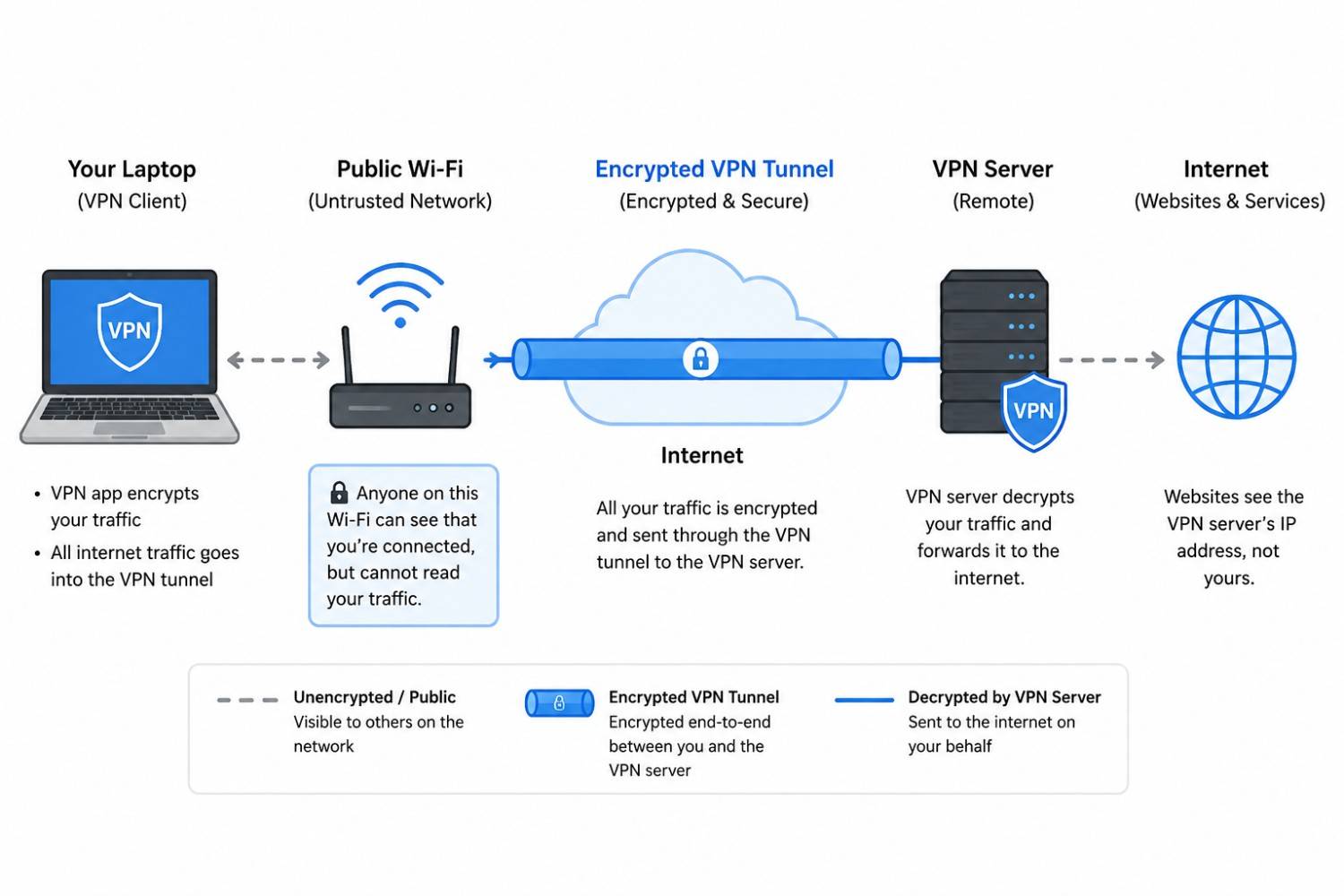
VPN public Wi‑Fi security protects you by encrypting your traffic before it crosses the hotspot. Once the VPN tunnel is active, a nearby attacker, the router operator, or a fake access point can see that you are connected to a VPN server, but they cannot read the websites, forms, cookies, or app data inside the tunnel.
That matters because public Wi‑Fi removes a layer of trust. In an airport lounge or coffee shop, you usually do not know who runs the hotspot, who else is connected, or whether the network name is even real.
A VPN does not make every online action safe. It protects the network path. It does not stop phishing, malware, fake login pages, or a bad decision to ignore a browser warning.
****
TL;DR: How VPN Public Wi‑Fi Security Works
A VPN protects public Wi‑Fi traffic by creating an encrypted tunnel from your device to a VPN server. Anyone watching the local network sees encrypted tunnel traffic, not your page content, login data, cookies, or app payloads.
What a VPN helps protect against:
- Packet sniffing on open Wi‑Fi
- Local man‑in‑the‑middle (MITM) interception
- Evil Twin hotspots (after the tunnel is active)
- Session cookie exposure on unencrypted traffic
- Hotspot operator tracking of your browsing destinations
What it does technically:
- Encrypts traffic before it crosses the local Wi‑Fi network
- Encapsulates your original packets inside VPN packets
- Sends visible traffic only to the VPN server IP address
- Hides your real IP address from destination websites
- Reduces what the hotspot, ISP, and nearby attackers can observe
What it cannot stop:
- Phishing pages you trust by mistake
- Malware already running on your device
- Fake captive portals before the VPN connects
- Browser warnings you manually ignore
- A VPN provider that logs more than it should
How a VPN Protects You on Public Wi‑Fi
A VPN protects you on public Wi‑Fi by encrypting your traffic on your device and sending it through a secure tunnel to a VPN server. The hotspot sees the tunnel.
It does not see the original website request or app data inside it.
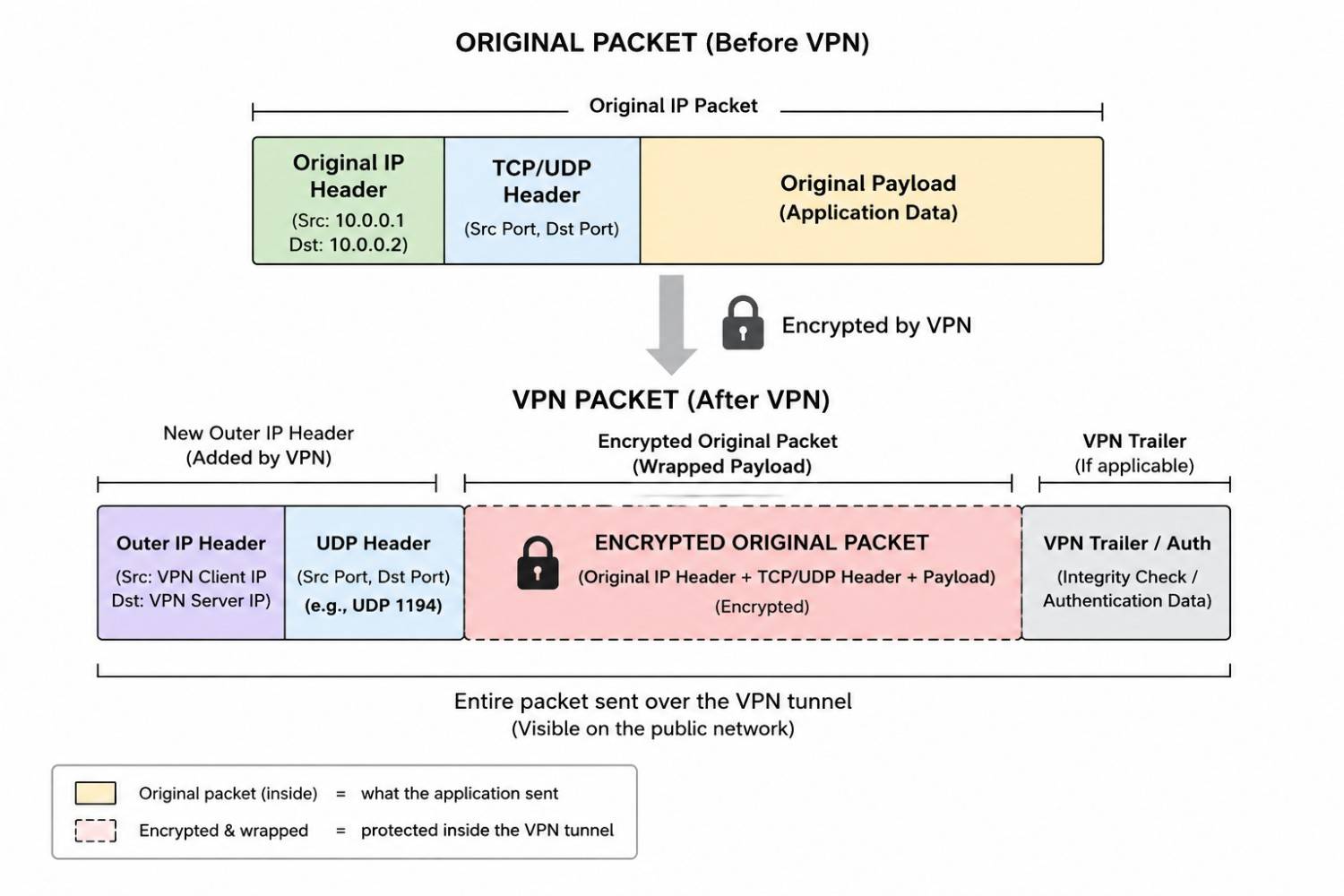
During setup, your device and the VPN server perform a cryptographic handshake. They agree on session keys and then use those keys to encrypt and authenticate the data for that connection. This is what turns plain traffic into unreadable ciphertext over the public Wi‑Fi path.
After that, your original packets are wrapped inside outer packets addressed to the VPN server. This process is called encapsulation, and it is the basic reason packet sniffing becomes useless once the tunnel is active, even on an open network.
Security standards bodies such as NIST describe VPNs as virtual networks built over existing physical networks that can provide secure communications for data transmitted over public networks.
What Changes When the VPN Tunnel Is Active?
The tunnel changes what each observer can see. It does not make you invisible, but it cuts off the local network from the useful parts of your traffic.
What different observers see:
| Observer | Without VPN | With VPN Active |
|---|---|---|
| Nearby packet sniffer | May see HTTP content, cookies, headers, full URLs, and destinations | Sees encrypted VPN tunnel packets only |
| Hotspot owner or router | May see DNS lookups, destination IPs, timing, volume, device details | Sees traffic to VPN server IP and overall tunnel volume |
| ISP or upstream network | May see destination IPs and timing for each site | Sees a connection to the VPN server |
| Destination website | Sees your real public IP address | Sees the VPN server IP address |
| VPN provider | Not involved | Can process your VPN connection and some metadata |
This is the trust shift many users miss. A VPN reduces how much you must trust the café, airport, hotel, or ISP. At the same time, it increases the importance of choosing a provider with clear privacy policies, strong security design, and independent verification where possible.
A no‑logs policy does not mean the provider technically sees nothing. It means the provider claims not to store certain activity or connection records. Always verify the exact policy and any independent audits before making strong privacy claims in marketing copy.
What Public Wi‑Fi Attacks Does a VPN Help Stop?
A VPN helps stop public Wi‑Fi attacks that depend on reading or modifying local network traffic. The most common examples are packet sniffing, local MITM interception, Evil Twin routing, and session hijacking on unencrypted connections.
Packet Sniffing
Packet sniffing means capturing network packets as they move through the Wi‑Fi environment. On plain HTTP, that can expose page content, search terms, form fields, cookies, and headers.
With a VPN active, the sniffer still captures packets. The difference is that the packets contain encrypted VPN tunnel data, not readable website or app content.
Man‑in‑the‑Middle (MITM) Attacks
A man‑in‑the‑middle attack happens when an attacker places their device between your device and the network path. On local networks, attackers may use techniques such as ARP spoofing to make your device send traffic through their machine.
A VPN does not always stop the attacker from sitting in the path. It does stop the useful payoff because the traffic passing through that path is already encrypted inside the tunnel. The attacker may still see that VPN traffic exists, but not what is inside it.
Evil Twin Hotspots
An Evil Twin hotspot is a lookalike Wi‑Fi network built to trick people into connecting. Security agencies such as CISA advise users to confirm the name and password of a public hotspot before use, because a fake network can look almost identical to a real one.
A VPN helps after the tunnel connects. It cannot protect information you type into a fake captive portal before the VPN has internet access.
Session Hijacking
Session hijacking happens when an attacker steals a session token or cookie and uses it to act like the logged‑in user. HTTPS has reduced this risk on modern sites, but unencrypted traffic and poorly configured sessions can still expose tokens.
A VPN adds another layer by keeping session data away from the local network. The safest setup is VPN plus HTTPS, not one instead of the other.
How Does a Man‑in‑the‑Middle Attack Work, and How Does a VPN Block It?
A man‑in‑the‑middle attack works by forcing your traffic through an attacker‑controlled device before it reaches the real network. A VPN blocks the readable part of the attack because application data is encrypted before the attacker can inspect or alter it.
A simplified flow on public Wi‑Fi:
- You connect to a public Wi‑Fi network.
- The attacker joins the same network or runs a lookalike hotspot.
- The attacker manipulates the network (for example via ARP spoofing) so your device routes traffic through their device.
- Your connection still appears normal because the attacker forwards traffic onward.
- Without encryption, the attacker can capture exposed content, cookies, or credentials.
- With a VPN active, the attacker sees encrypted tunnel data instead of readable content.
The key point is timing: the VPN tunnel should be active before email, banking, messaging, cloud sync, or browser traffic starts moving.
Coffee Shop Simulation: No VPN vs VPN Active
Imagine you sit in a coffee shop and see two networks: CafeGuest and Cafe_Free_WiFi. You choose the second one because it looks official, but it is actually a rogue hotspot.
| Step | Without VPN | With VPN Active |
|---|---|---|
| You join the network | Your traffic routes through attacker hardware | Your traffic may route through attacker hardware |
| You open email | DNS and destination signals may be visible | Hotspot sees only VPN tunnel traffic |
| You submit a login form | Plain HTTP credentials would be exposed | Credentials travel inside the encrypted VPN tunnel |
| The site sends a session cookie | Poorly protected cookies may be captured | Cookie data stays inside the VPN tunnel and HTTPS session |
| You leave the café | The attacker may keep stolen tokens or credentials | The attacker keeps encrypted packet captures they cannot easily use |
The attacker keeps encrypted packet captures they cannot easily use
The attacker can still know that someone used a VPN. That is not the same as knowing what you did inside it.
How a VPN Works at the Packet Level
At the packet level, a VPN encrypts your original packet and wraps it inside a new packet addressed to the VPN server. The local Wi‑Fi network sees the outer packet. It does not see the real destination or readable payload inside.
Modern VPN protocols do this in different ways. For example:
- WireGuard commonly uses the ChaCha20‑Poly1305 construction for authenticated encryption.
- Many OpenVPN deployments use AES‑256‑GCM for newer clients and servers.
Protocol choice affects speed, reconnect behavior, compatibility, and battery use. For normal public Wi‑Fi use, the practical rule is simple: use a modern protocol and keep the app updated.
Example protocol overview:
| Protocol | Common Encryption Design | Speed Profile | Typical Best Use Case |
|---|---|---|---|
| WireGuard | ChaCha20-Poly1305 | Very fast | Mobile, travel, everyday browsing |
| OpenVPN | Often AES-256-GCM in modern setups | Moderate to fast | Desktop, broad compatibility |
| IKEv2/IPsec | IPsec-based with fast reconnect | Fast | Mobile network switching (Wi-Fi/cellular) |
| L2TP/IPsec | Older layered design | Moderate | Legacy compatibility only; fallback use |
Avoid saying one protocol is always best. The right choice depends on your device, network, server location, and VPN app implementation.
What Does a Packet Sniffer See?
On public Wi‑Fi, this is what changes for someone watching the local network.
| Data Layer | No VPN, HTTP | No VPN, HTTPS | With VPN Active |
|---|---|---|---|
| Destination IP | Visible | Visible | VPN server IP visible |
| DNS query | Visible unless encrypted DNS is used | Visible unless encrypted DNS is used | Usually handled inside VPN tunnel (VPN DNS) |
| TLS SNI | Not applicable for HTTP | Often visible unless ECH is used | Hidden from local network inside the VPN tunnel |
| Full URL path | Visible | Hidden by HTTPS | Hidden |
| Form inputs | Visible | Hidden by HTTPS | Hidden inside HTTPS and VPN tunnel |
| Session cookies | Visible if sent insecurely | Hidden by HTTPS | Hidden inside HTTPS and VPN tunnel |
| Timing and volume | Visible | Visible | Tunnel timing and volume still partly visible |
This is why HTTPS alone is not the same as VPN protection. HTTPS protects the content of a website connection. A VPN protects more of the local network path.
There are modern exceptions. Encrypted DNS (DoH/DoT) and Encrypted Client Hello (ECH) can reduce what HTTPS exposes, but support is not universal across every app, site, network, and device.
Is HTTPS Enough on Public Wi‑Fi, or Do You Still Need a VPN?
HTTPS is essential, but it is not a full substitute for a VPN on public Wi‑Fi. HTTPS protects the content between your browser and the website. A VPN protects the local network path between your device and the VPN server.
Think of HTTPS as sealing the message. Think of a VPN as hiding the local route that message takes through the hotspot.
Protection layers compared:
| Protection Layer | HTTPS Only | VPN Only | VPN Plus HTTPS |
|---|---|---|---|
| Website content encrypted | Yes | Only inside VPN path; then depends on site | Yes |
| Destination IP hidden from hotspot | No | Yes | Yes |
| DNS hidden from local network | Only if encrypted DNS is active | Usually yes via VPN DNS | Usually yes |
| Real IP hidden from website | No | Yes | Yes |
| Site identity validation | Yes (certificates) | No | Yes (certificates) |
| Local MITM readability reduced | Yes for HTTPS content | Yes for tunnel contents | Strongest practical setup |
| Phishing detection | No | No | No |
VPN plus HTTPS is the safer pair. The VPN protects you from the local network. HTTPS confirms that the site connection is encrypted and certificate‑validated.
A VPN protects the path, not your judgment. If a fake bank site uses HTTPS and you enter your password, the VPN will deliver that password securely to the wrong place.
What a VPN Cannot Protect You From on Public Wi‑Fi
A VPN cannot protect you from threats that happen before encryption starts, inside your device, or because of a decision you make. It is a network‑layer control, not a complete security system.
- Phishing pages: If you click a fake login page and type your password, the VPN encrypts that traffic and sends it to the attacker‑controlled site. The tunnel did its job. The destination was the problem.
- Malware on your device: Malware can read keystrokes, screenshots, browser data, or clipboard content before traffic enters the VPN tunnel. Encryption cannot fix a compromised device.
- Captive portals before the VPN connects: Hotel, airport, and café Wi‑Fi often require a browser login before internet access works. During that portal step, the VPN may not be connected yet.
- Fake captive portals: Some rogue hotspots imitate hotel or airport login pages and ask for room numbers, names, emails, or payment details.
- Ignored certificate warnings: If your browser warns that a certificate is invalid, clicking through can expose you to MITM, even if a VPN is active.
- A logging VPN provider: A VPN shifts trust from the local network to the VPN provider. If the provider stores connection or activity logs, your privacy depends on that policy and its implementation.
Use providers that publish clear privacy terms, disclose what they collect, and support independent audits where possible. Product pages should not claim no‑logs, auto‑connect, kill switch, or protocol support unless official documentation confirms it.
Best Practices to Protect Data on Public Wi‑Fi
The best way to use a VPN on public Wi‑Fi is to connect it before any other app sends data. Most failures happen during setup, not during the encrypted session.
Best‑practice steps:
- Verify the network name first. Ask venue staff or use official signage.
- Disable auto‑connect for public networks. Do not let your phone join lookalike hotspots automatically.
- Complete the captive portal if required. Do not enter sensitive account credentials there.
- Turn on the VPN immediately after the portal grants access.
- Confirm the VPN status indicator shows a live tunnel.
- Keep the kill switch enabled if your VPN app supports it.
- Use HTTPS before entering any login or payment details.
- Turn off file sharing and network discovery on public networks.
- Avoid banking or work logins if you cannot confirm the VPN is active.
Public Wi‑Fi security is mostly sequencing: join carefully, authenticate if needed, turn on the VPN, then use your apps.
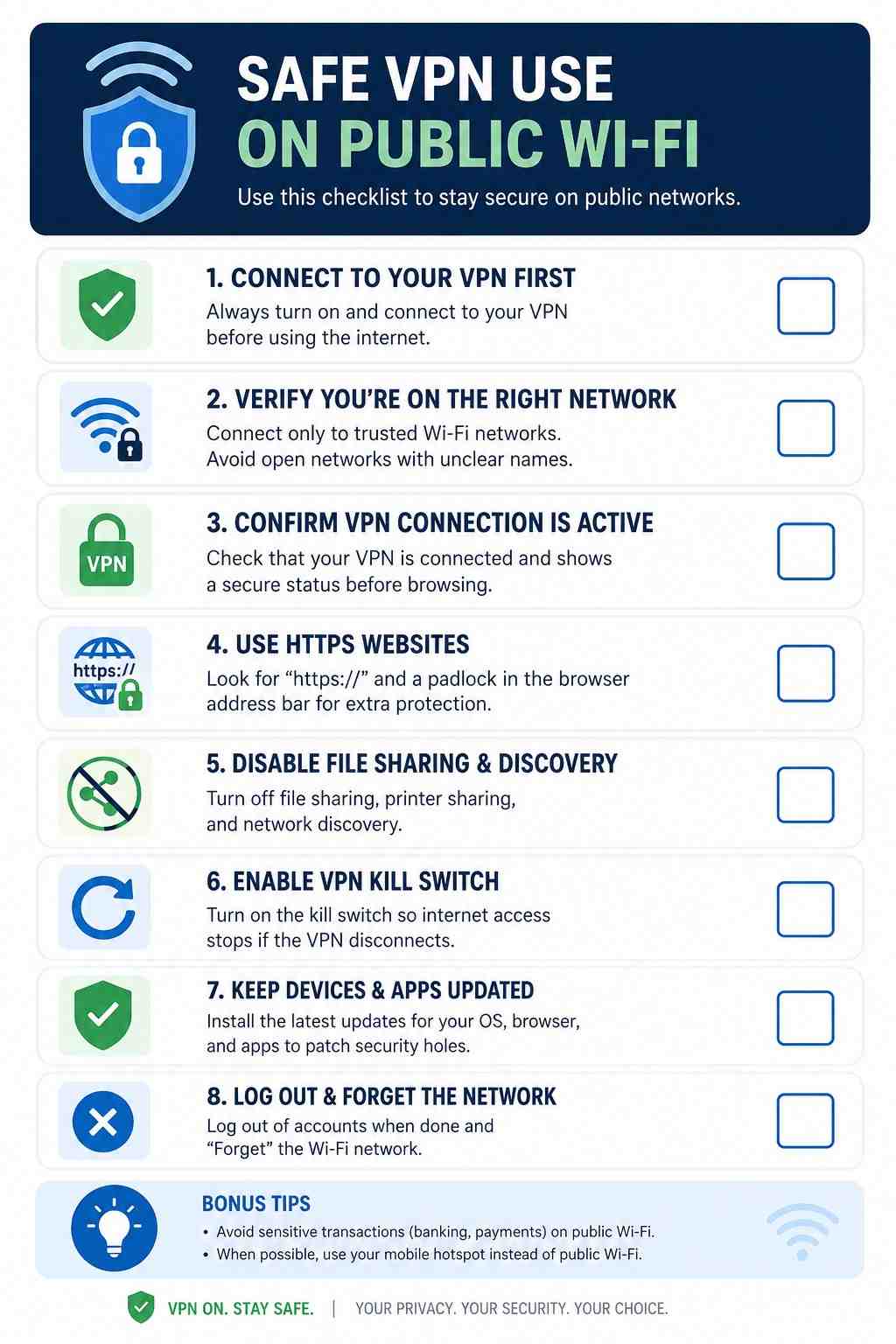
Public Wi‑Fi VPN Security Checklist
Use this checklist before connecting in airports, hotels, cafés, conferences, or coworking spaces:
☐ VPN app is installed and updated
☐ Kill switch is enabled if available
☐ Auto‑connect to public Wi‑Fi is disabled
☐ Network name (SSID) is verified with staff or signage
☐ Captive portal is completed before normal browsing
☐ VPN tunnel is active before opening apps or tabs
☐ File sharing and network discovery are turned off
☐ Browser shows HTTPS before credentials are entered
How TraverseVPN Protects You from Public Wi‑Fi Attacks
Public Wi‑Fi at cafés, airports, hotels, malls, railway stations, and coworking spaces is convenient, but it can expose users to security risks. Attackers on the same network may try to capture traffic, imitate trusted hotspots, intercept sessions, or redirect users to unsafe websites.
TraverseVPN helps reduce these risks by creating an encrypted VPN tunnel between your device and a remote VPN server. This makes your internet activity much harder to read, track, or misuse while using a shared network.
Public Wi‑Fi Risks TraverseVPN Helps Reduce
| Risk Involved | How TraverseVPN Helps (as Claimed) |
|---|---|
| Packet sniffing | Encrypts traffic so captured data is difficult to read |
| Fake hotspots | Limits what a malicious hotspot operator can see inside traffic |
| Man-in-the-middle attacks | Adds encrypted routing between your device and the VPN server |
| VPN disconnection | Kill switch blocks internet access until the VPN reconnects |
| DNS/WebRTC/IPv6 leaks | Leak protection helps prevent accidental exposure |
| Malicious redirects | DNS-based protection may help block risky or known malicious domains |
Features and protections should always be confirmed through TraverseVPN’s official documentation or app interface.
How TraverseVPN Protects You
- Encrypts your traffic before it crosses public Wi‑Fi TraverseVPN routes your data through an encrypted tunnel. Even if someone captures packets on the same network, the data is difficult to inspect or misuse.
- Reduces visibility on the local network On open Wi‑Fi, hotspot operators or nearby attackers may observe connection activity. TraverseVPN reduces this exposure by sending traffic through VPN‑protected routing instead of directly through the local network.
- Prevents exposure during VPN drops Public Wi‑Fi can disconnect or fluctuate. TraverseVPN’s claimed kill switch stops internet access if the VPN drops, helping prevent your real IP address or unprotected traffic from leaking.
- Helps block common leak paths TraverseVPN claims DNS, WebRTC, and IPv6 leak protection. These protections help keep browsing requests and IP‑related information inside the VPN tunnel.
- Gives control with split tunneling With split tunneling, users can choose which apps use the VPN. On public Wi‑Fi, sensitive apps like banking, email, messaging, business dashboards, and cloud tools can be routed through TraverseVPN.
- Adds another privacy layer with secure routing TraverseVPN promotes Secure Core or multi‑hop style routing, which can route traffic through multiple hardened servers. This adds separation between your original public Wi‑Fi connection and the final websites or services you access.
- May reduce unsafe redirects TraverseVPN’s claimed DNS‑based ad and malware protection may help block known malicious domains, scam pages, and harmful redirects often used on unsafe networks.
Best Situations to Use TraverseVPN
TraverseVPN is especially useful when you are:
- Checking email on airport or railway Wi‑Fi
- Logging into banking or payment apps at a café
- Accessing business dashboards from a hotel
- Using messaging apps on open public Wi‑Fi
- Working from coworking spaces or shared networks
- Browsing from malls, campuses, lounges, or restaurants
Common Mistakes People Make with VPNs on Public Wi‑Fi
The most common VPN mistakes on public Wi‑Fi are timing mistakes. Users install a VPN, then let traffic leak before the tunnel starts.
Mistake 1: Opening apps before the VPN connects Background apps start syncing as soon as your device joins Wi‑Fi. Email, chat, cloud storage, and browser tabs may send traffic before you tap the VPN button.
Fix: Make VPN connection the first step after captive portal access.
Mistake 2: Treating HTTPS as a VPN replacement HTTPS protects content. It does not always hide local network signals such as destination IPs, DNS behavior, timing, and volume.
Fix: Use HTTPS and a VPN together on public Wi‑Fi.
Mistake 3: Using a free VPN without reading its policy Some free VPNs fund the service through ads, analytics, or data collection. That can defeat the purpose of using a VPN for privacy.
Fix: Read the privacy policy and look for clear terms before trusting any VPN with public Wi‑Fi traffic.
Mistake 4: Ignoring the captive portal window Captive portals are a real gap because the VPN may not work until the portal grants internet access. Treat that window as exposed.
Fix: Complete only the required portal steps, then close it and connect the VPN.
Mistake 5: Leaving the kill switch off Wi‑Fi drops happen. If the VPN disconnects and the kill switch is off, traffic may fall back to the normal public network.
Fix: Turn the kill switch on when your VPN app provides one.
Frequently Asked Questions
Does a VPN actually protect you on public Wi‑Fi? Yes. A VPN protects you on public Wi‑Fi by encrypting your traffic before it crosses the local network. Attackers may still capture packets, but the useful content is encrypted. It does not stop phishing, malware, or fake captive portal pages before the tunnel connects.
What are three things a VPN cannot protect you from?
A VPN cannot protect you from phishing pages you trust, malware already running on your device, or fake captive portals shown before the VPN tunnel is active. These are user, device, and pre‑connection risks. A VPN protects network traffic after the tunnel is live.
Can a public Wi‑Fi provider see your browsing activity if you use a VPN?
With a VPN active, the Wi‑Fi provider usually sees a connection to the VPN server, timing, and data volume. It should not see the websites, page content, forms, cookies, or app payloads inside the tunnel. Without a VPN, the provider may see more destination information, especially when DNS is not encrypted.
Can law enforcement see through a VPN?
A VPN does not make anyone immune to legal process. Law enforcement can request records from providers, websites, ISPs, payment processors, or device services. A verified no‑logs provider may have less stored VPN usage data to provide, but that claim must be backed by policy, technical controls, and preferably independent audits.
Does a VPN slow down public Wi‑Fi speeds?
A VPN can slow public Wi‑Fi because it adds encryption and routes traffic through another server. The impact depends on protocol, server distance, hotspot quality, congestion, and device performance. Modern protocols such as WireGuard are designed for low overhead, but no VPN can fix a bad hotspot.
Is online banking safe on public Wi‑Fi with a VPN?
Online banking is safer with a VPN than without one on public Wi‑Fi, but only if the VPN is active first and the bank site or app uses valid HTTPS. Confirm the network name, start the VPN, and check the official bank URL before logging in. Do not continue if the browser shows a certificate warning.
Ending Note
Public Wi‑Fi is not automatically dangerous every time you connect. Modern HTTPS has made everyday browsing much safer than it used to be, as reflected in public Wi‑Fi guidance from consumer protection agencies.
The risk is still real when the network is open, fake, misconfigured, or watched by someone on the same channel.
A VPN reduces that local risk by encrypting traffic before the hotspot can read it.
The habit matters as much as the tool. Connect carefully, avoid fake portals, keep the tunnel active, use HTTPS, and do not ignore warnings.